Pickup 360
Pickup 360 settings
Step 1
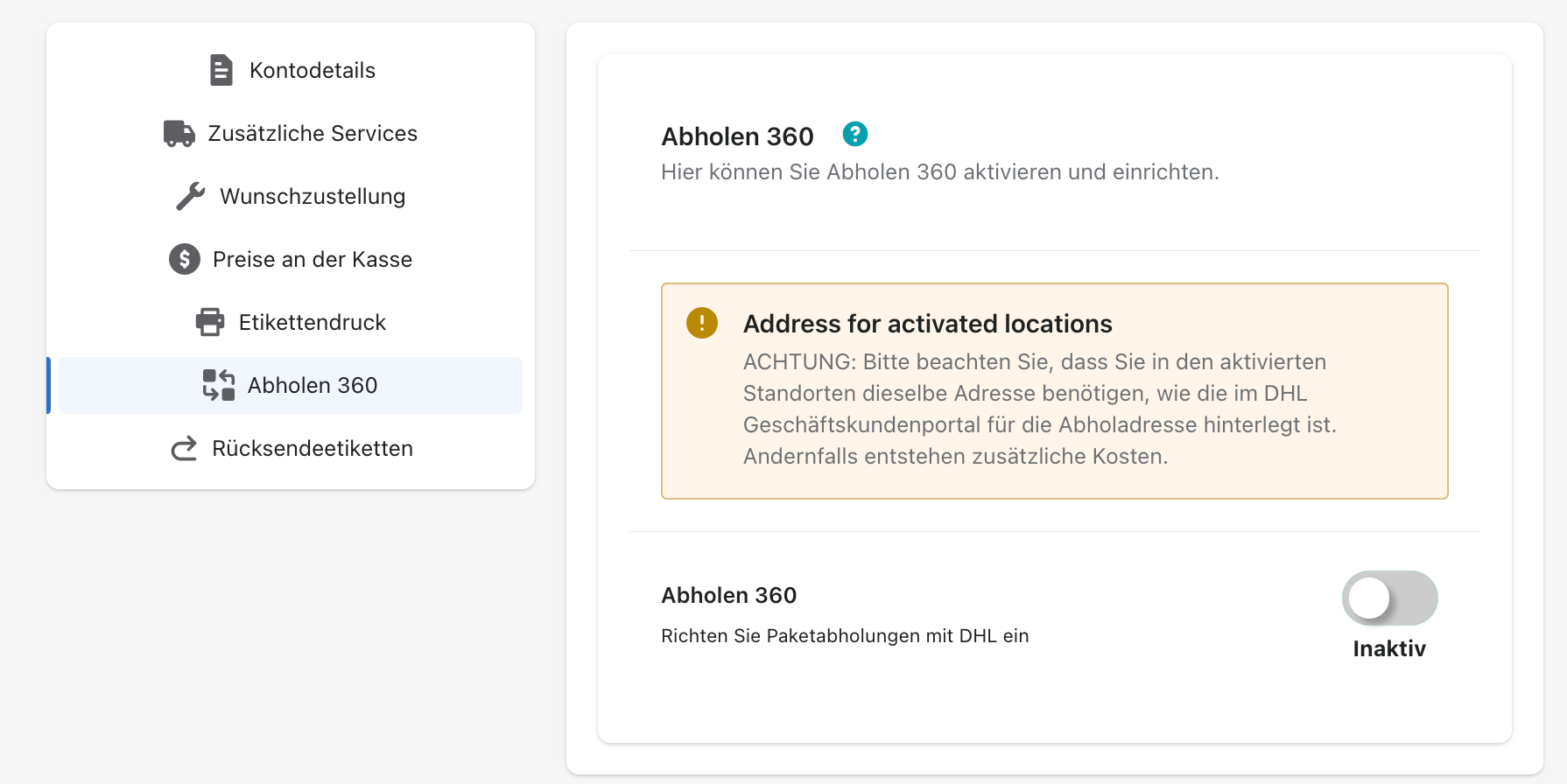
Select Apps, then select the Post & DHL Shipping app.
Step 2
On the dashboard, select DHL Paket, then select Pickup 360 on the right.
Step 3
Select Inactive to activate Pickup 360. This feature lets you schedule collection of your parcels by DHL.
Step 4
Select the location from which the parcels should be collected.
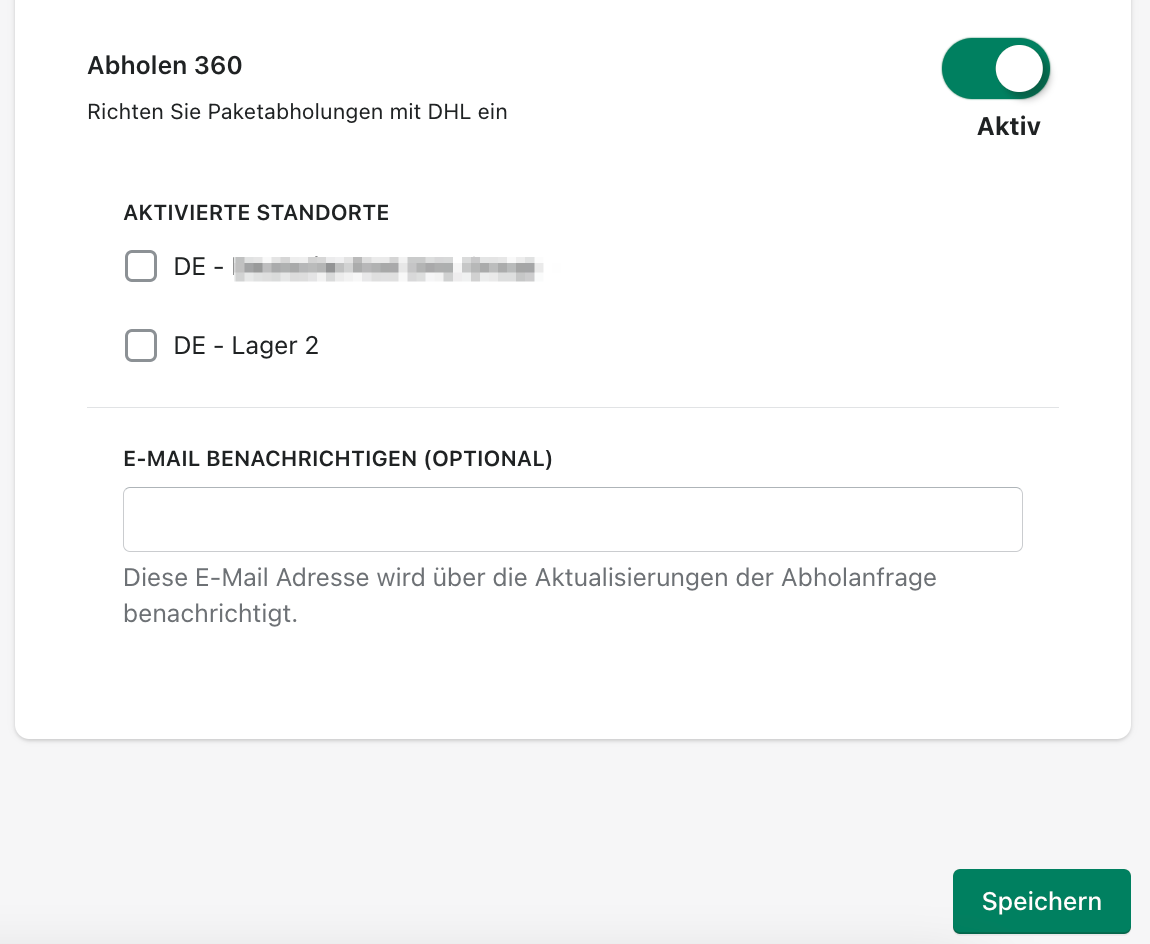
The address must first be defined in the DHL Business Customer Portal under Pickup → Settings.
Add exactly the same address to your locations in the Shopify settings.
Create a collection order
Step 1
Select Apps, then select the Post & DHL Shipping app.
Step 2
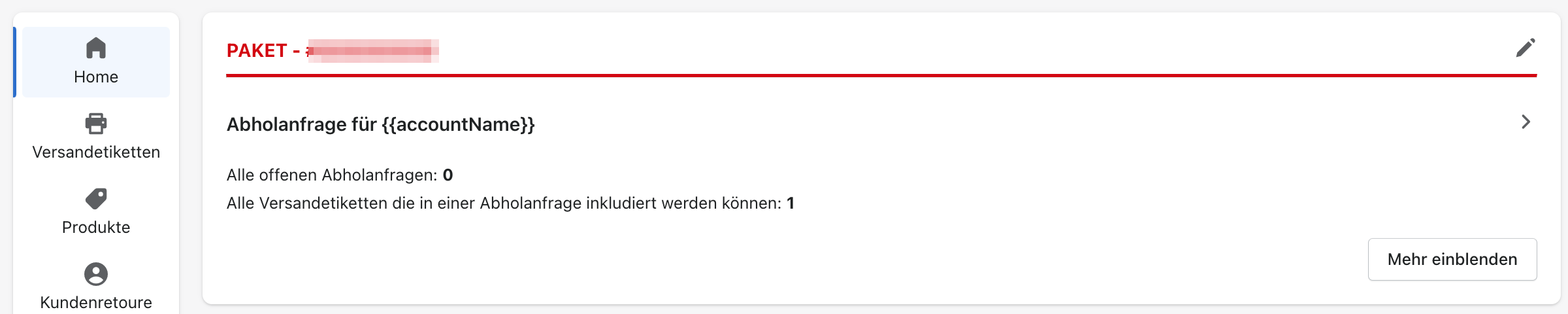
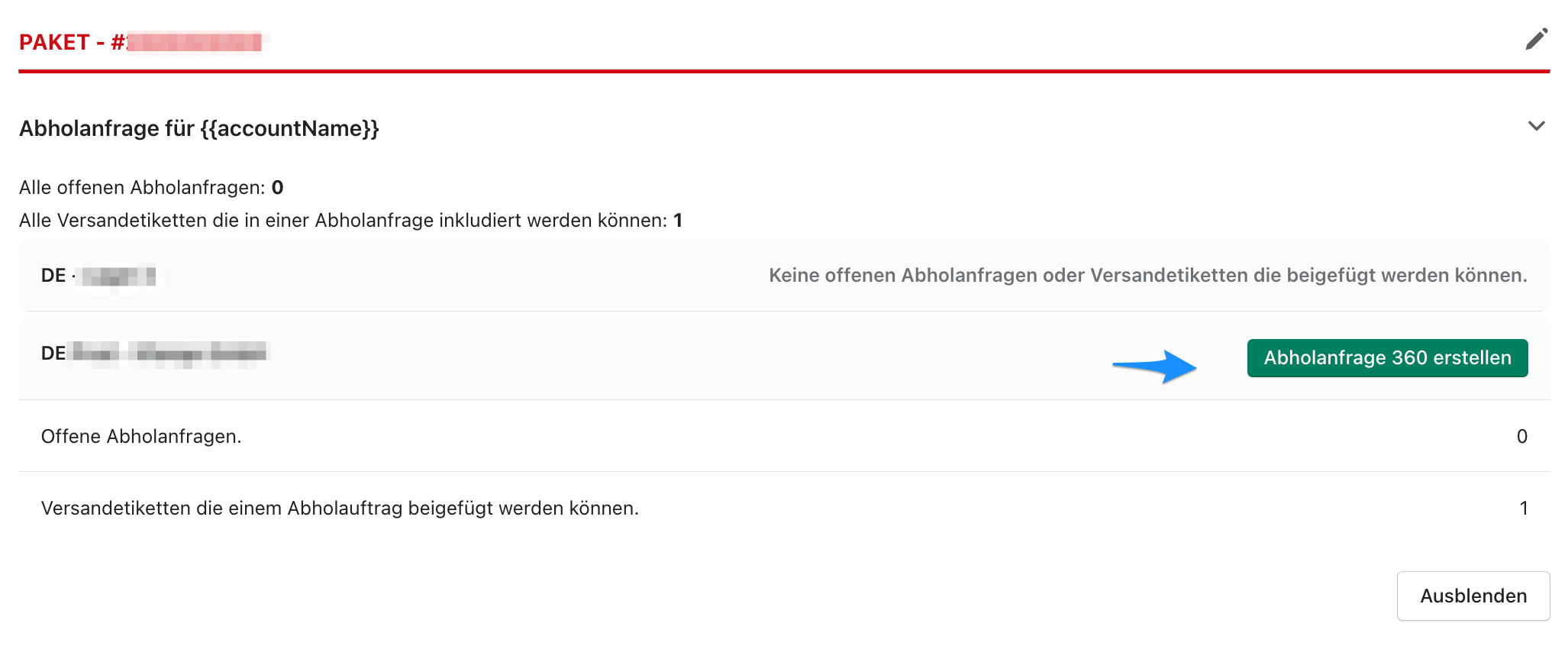
On the dashboard, select Show more in the bottom-right corner, then select Create Pickup 360 orders.
Step 3
Select the parcels to add to the Pickup 360 request.
Step 4
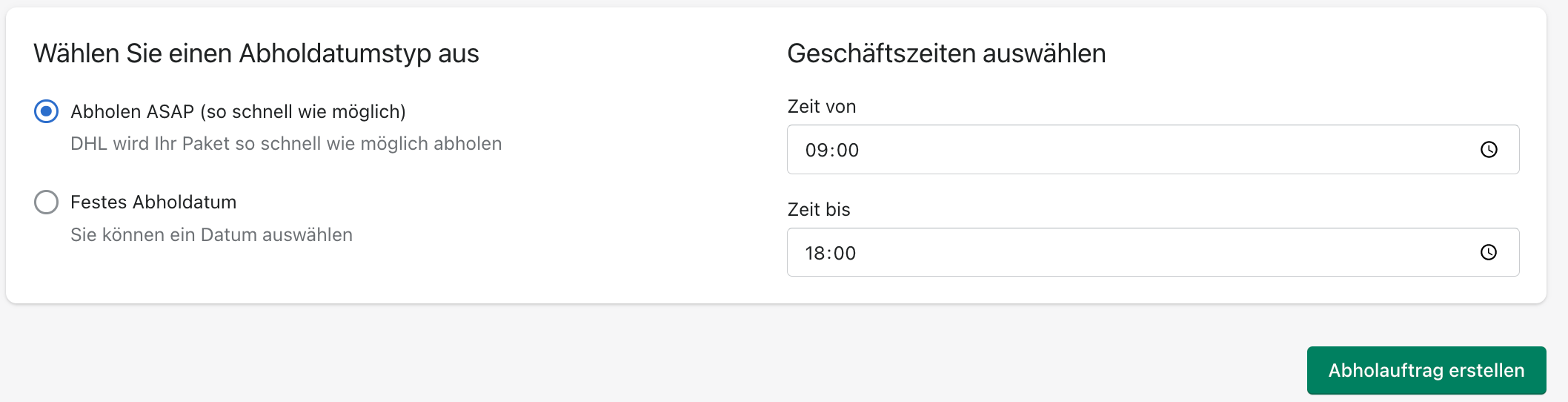
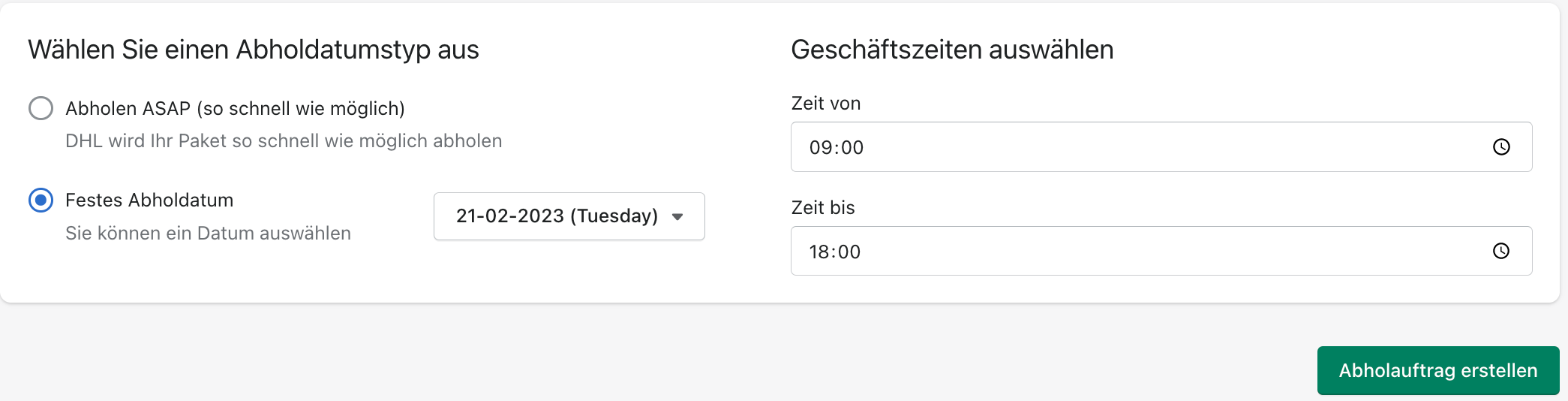
After selecting the parcels, choose either Pickup ASAP or Fixed pickup date.
-
With Pickup ASAP, DHL collects the parcel as soon as possible. Define the business hours during which it can be collected.

-
With Fixed pickup date, select a specific collection date and define the business hours.
Step 5
Select Create collection order.
Step 6
On the app dashboard, select Pickup 360.
Step 7
Your active collection requests are displayed.
Step 8
Choose between the available views.
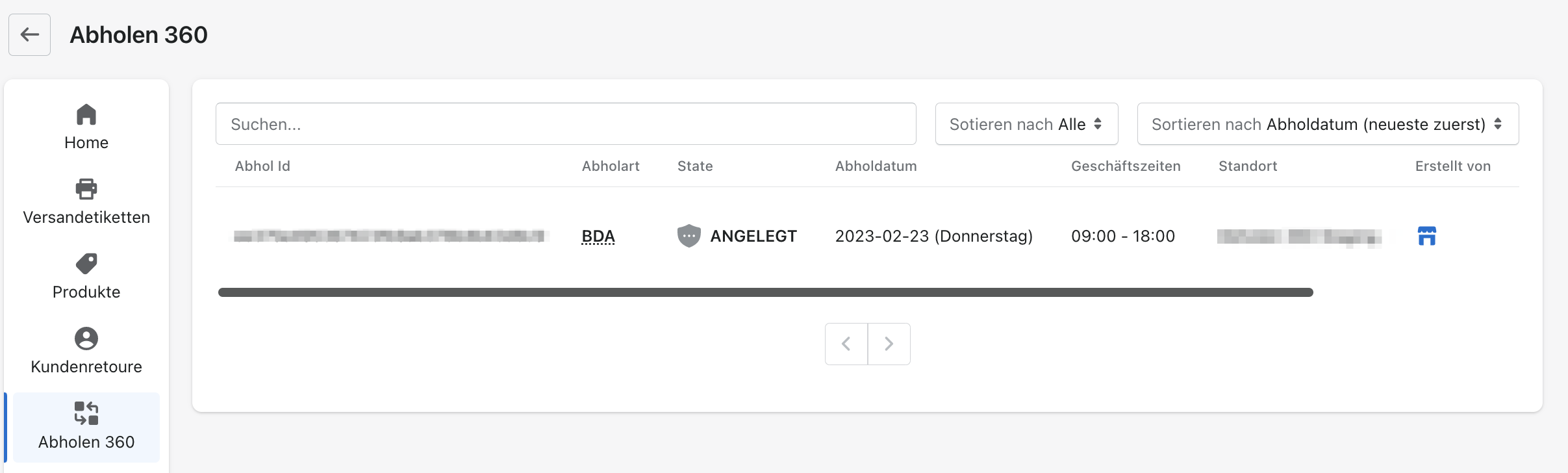
The system distinguishes between BDA on-demand collection and EMA one-time collection.
BDA: Collection of up to 10 shipments as needed. This option is intended primarily for customers who do not require regular collections. Shipments, including bulky goods, are collected from the agreed business addresses when required.
EMA: Collection of more than 10 parcels as needed. This option is intended for customers who want larger quantities beyond their agreed collection volume, or bulky shipments, collected from the agreed collection locations.