Enclosed return label
Set up enclosed return labels
Step 1
Go to Apps and open the Post & DHL Shipping app.
Step 2
For your DHL Paket account, select Edit or the pencil icon in the top-right corner.
Step 3
You can now edit your account. All return settings are available under Return labels.
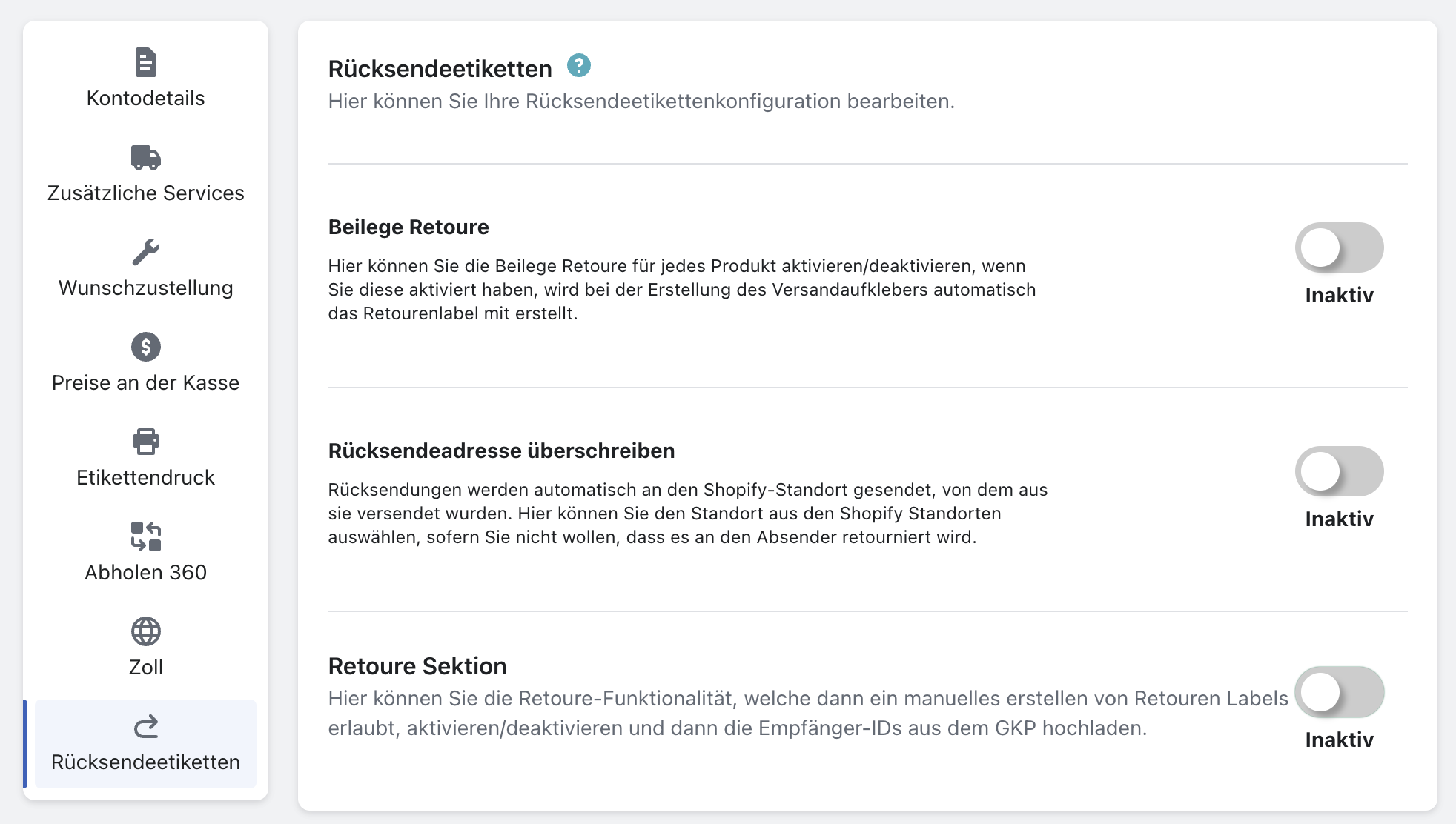
Enclosed return labels must first be enabled for your business customer account by DHL Sales. The Returns product alone is not sufficient; your DHL sales contact must also activate Enclosed return labels.
Before you can activate Returns, you must add the product to your participations. See Participations for instructions. Otherwise, the return settings will not be displayed.
Step 4
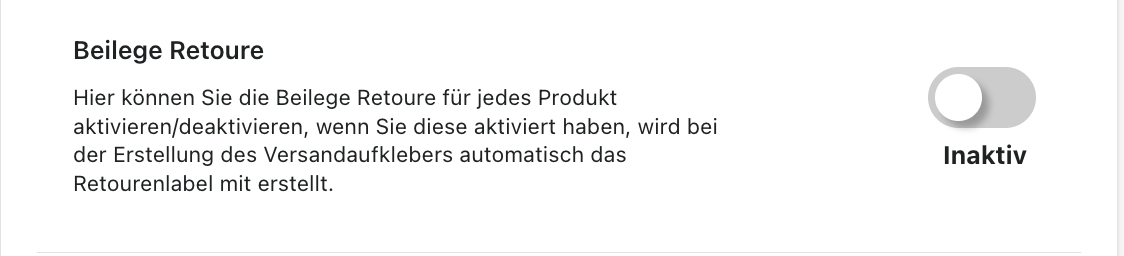
Enclosed return label automatically creates a return label whenever you create a shipping label.
Step 5
Select Inactive to activate the feature.
The setting should then look like this:
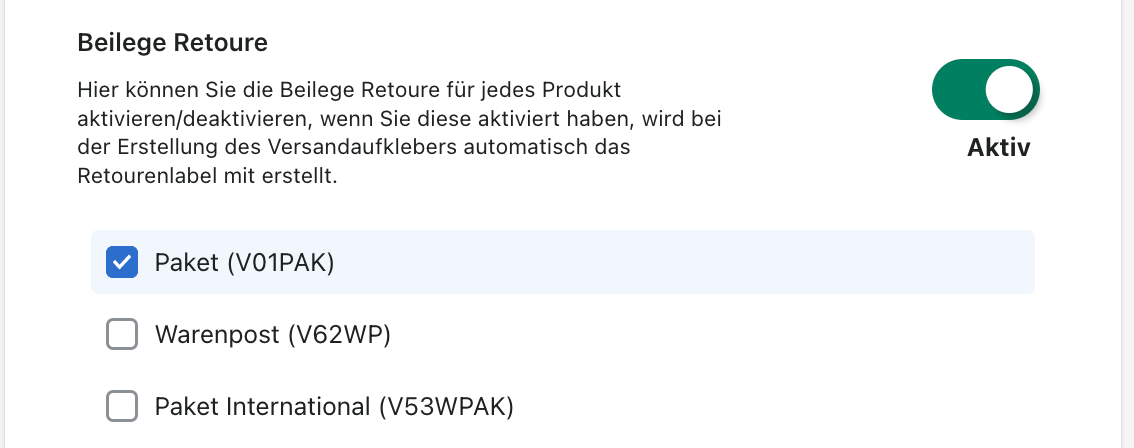
Step 6
Select the product for which you want to use returns.
Step 7
Select Save at the bottom of the page.
The Enclosed return label product must be active in your DHL business customer account before it can be used in the app. Otherwise, errors will occur later. Contact DHL Sales to have the product activated.
Create an enclosed return label
Step 1
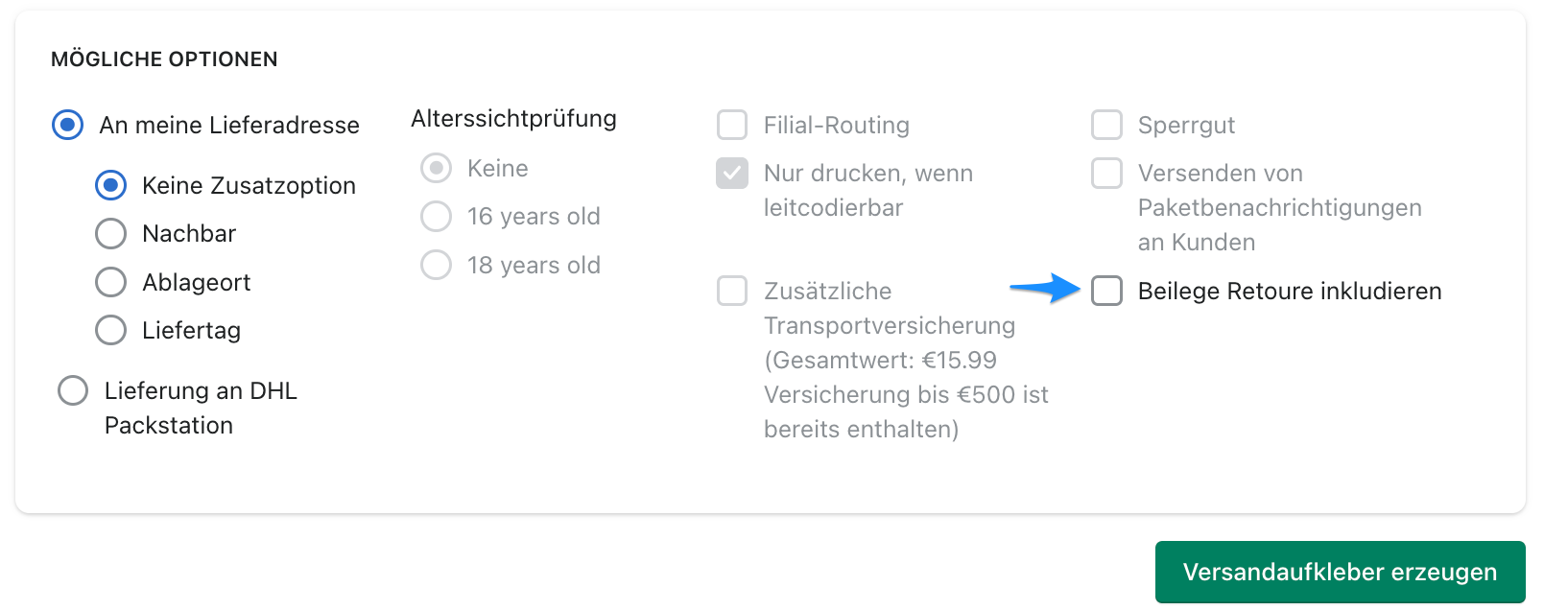
When creating a label for an order, make sure that Enclosed return label included is selected.
Step 2
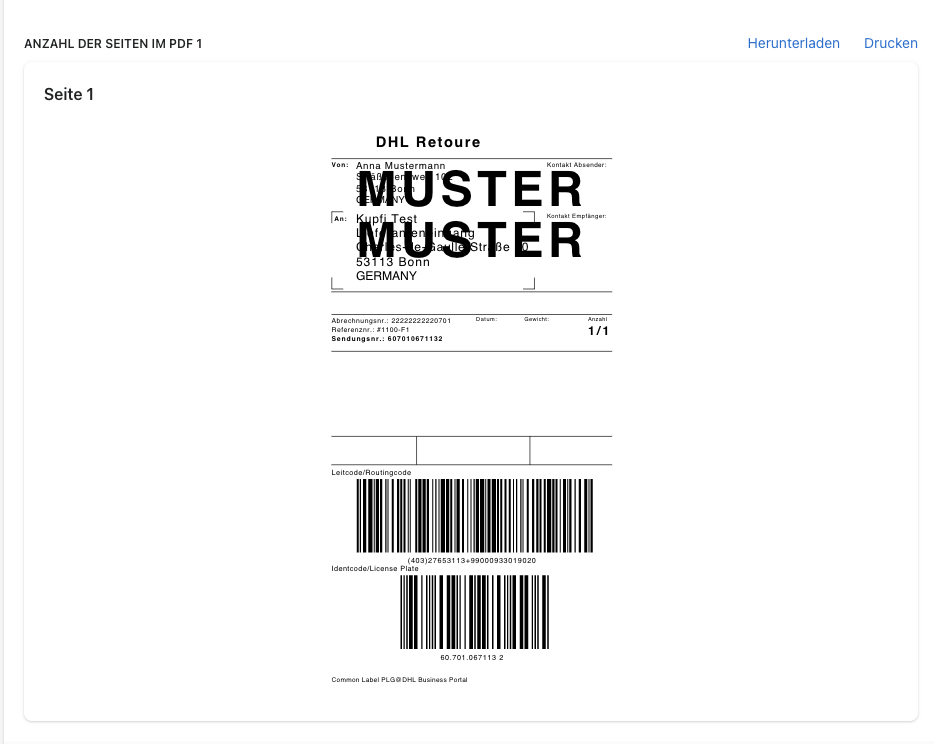
At the end of the process, both the shipping label and the return label are displayed. You can print or save both labels.
Error message
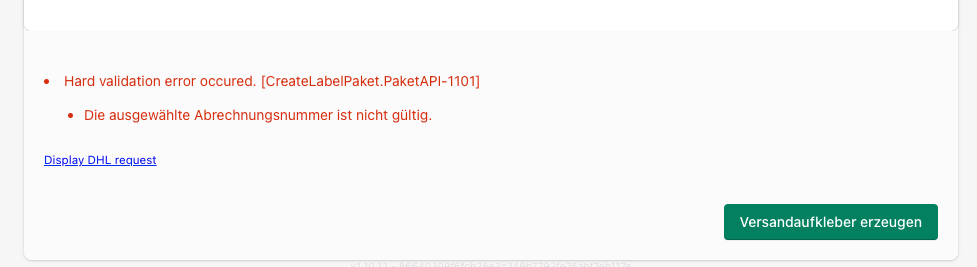
If this error message appears, the Enclosed return label product has not yet been activated by DHL Sales.