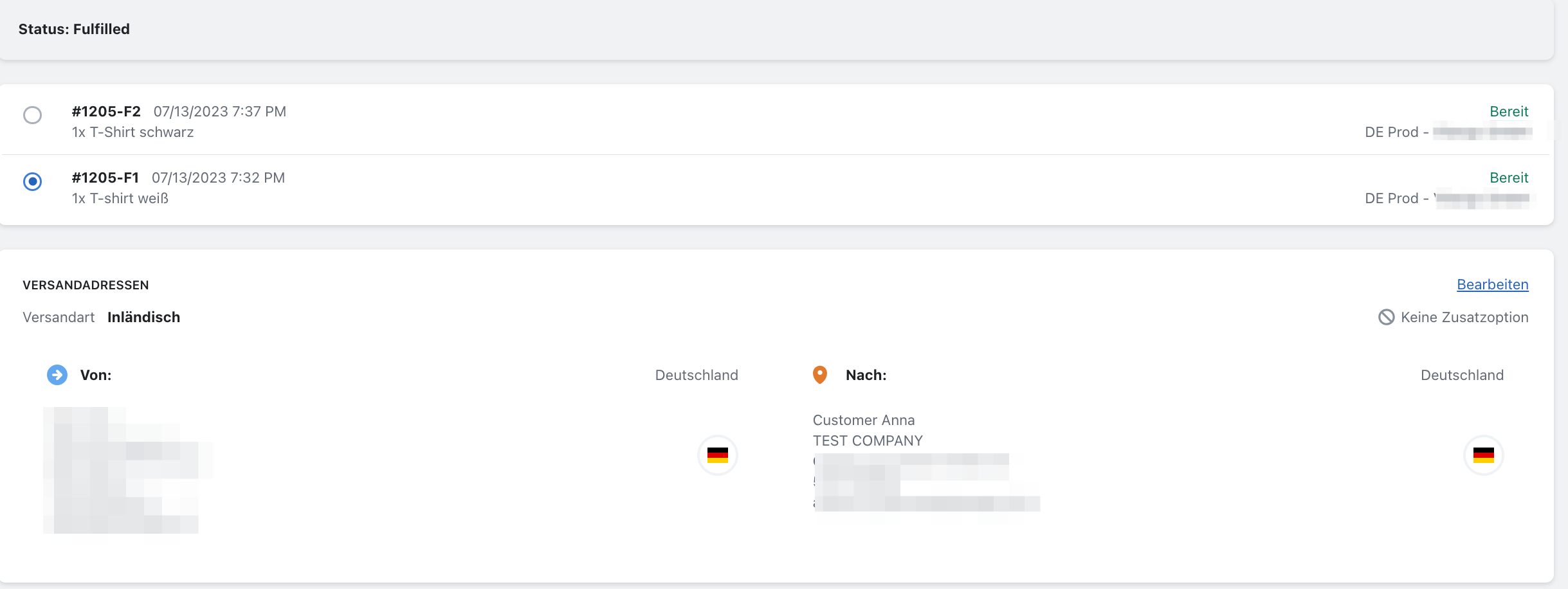
Partial delivery
This guide explains how to create multiple labels for a single order.
Step 1
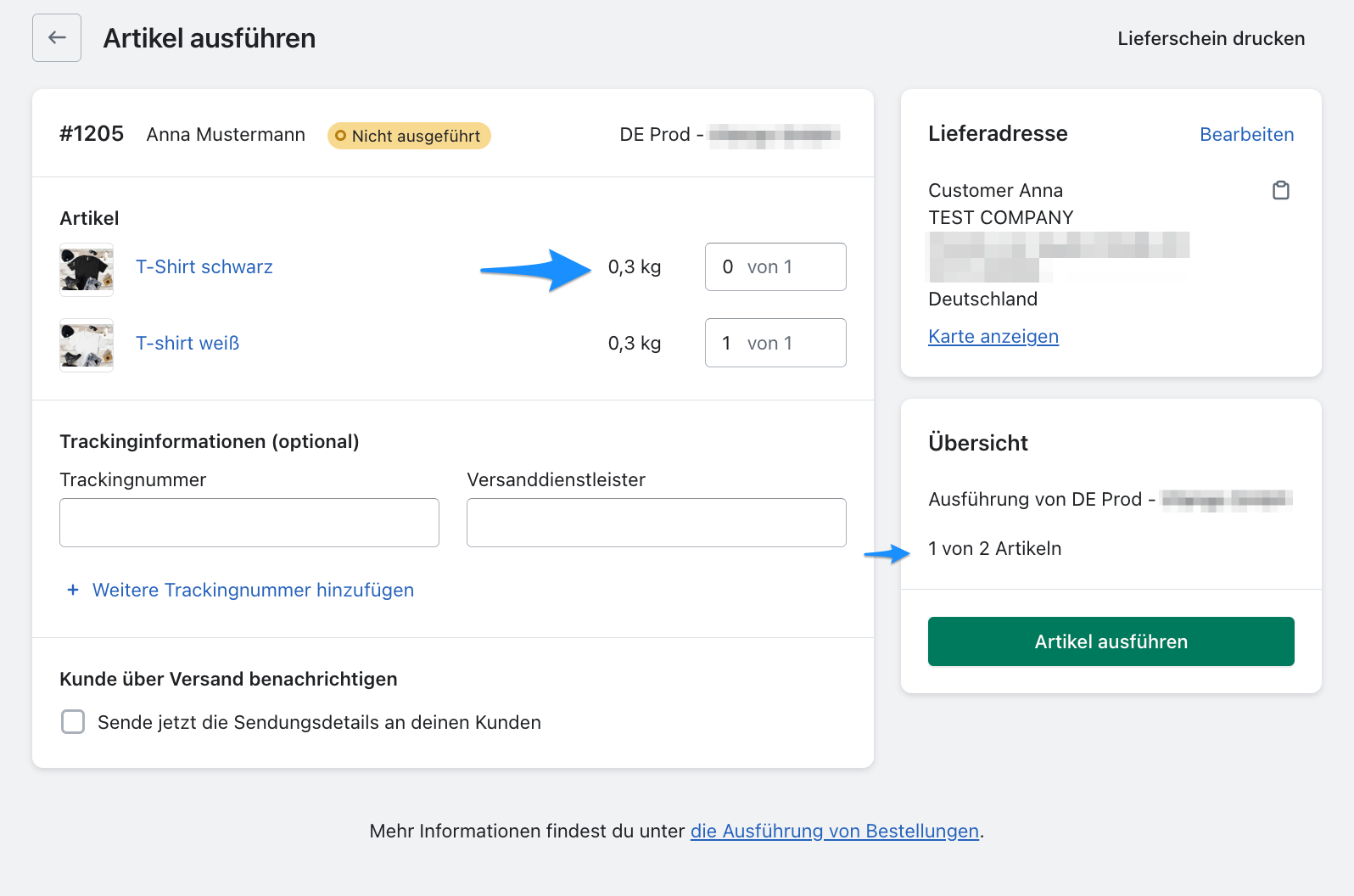
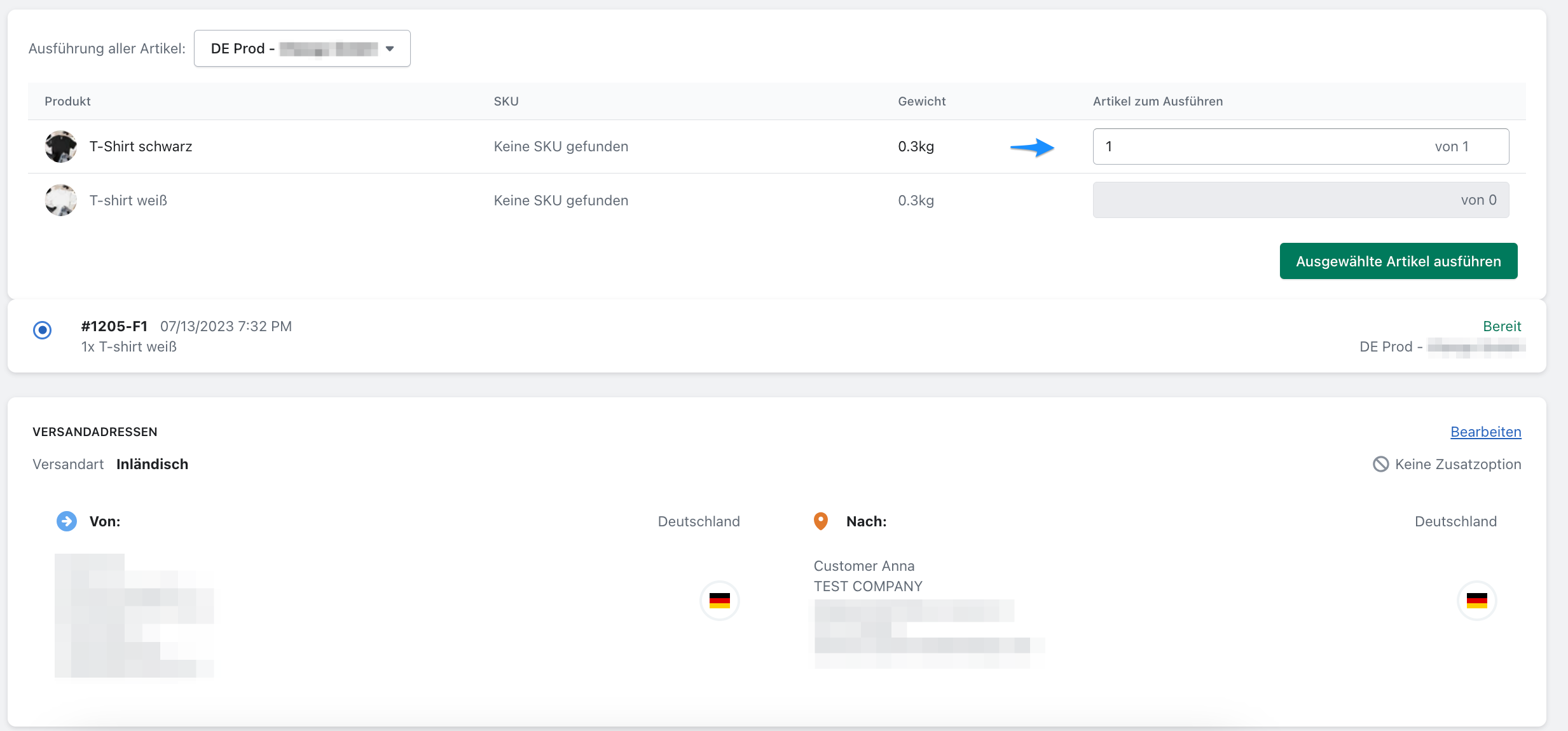
In this example, the order contains several products, but you only want to create a label for one product. Set the quantity of the other product to zero, as shown in the screenshot, and then select Fulfil items.
Step 2
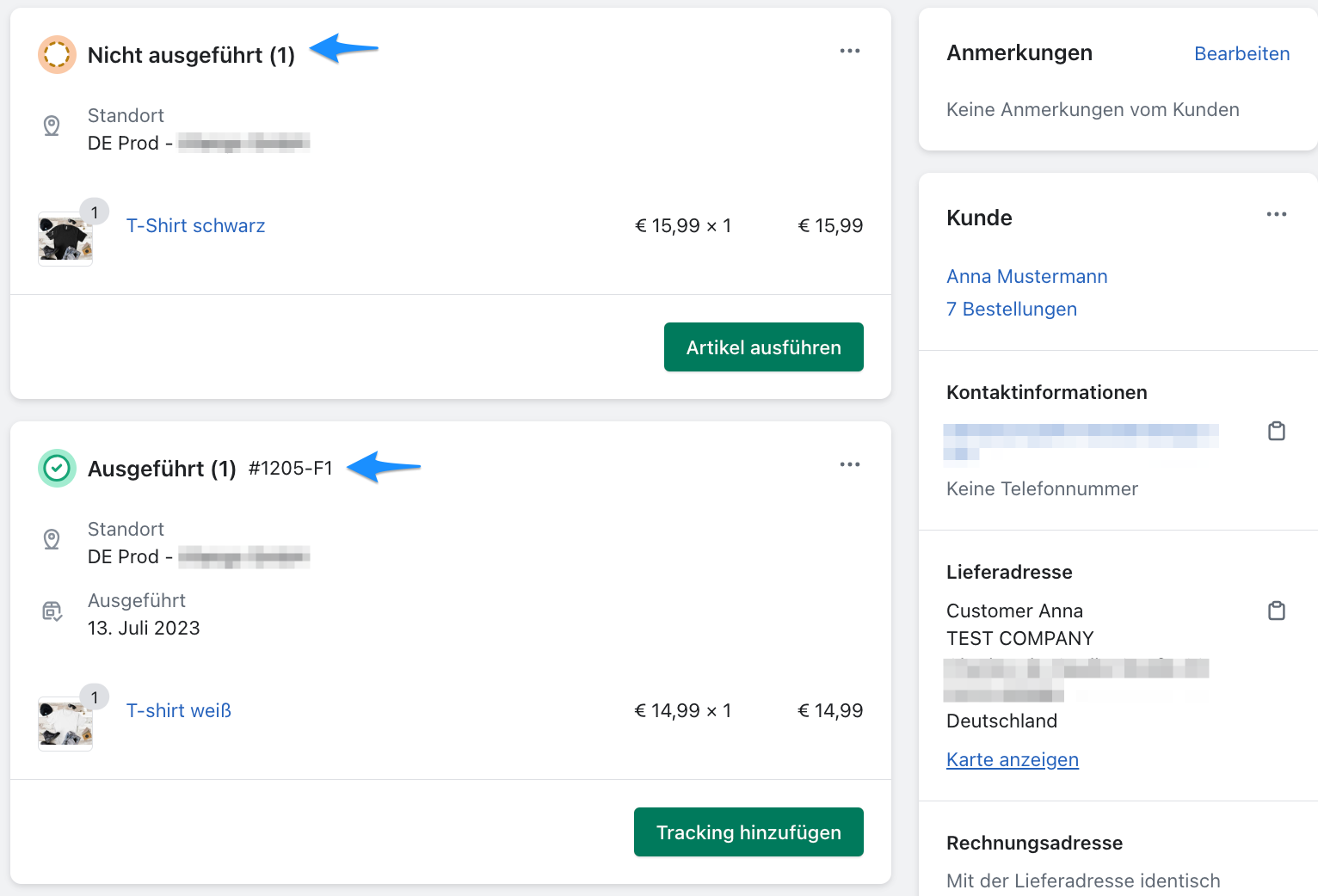
You have now created the fulfilment for the first product.
Step 3
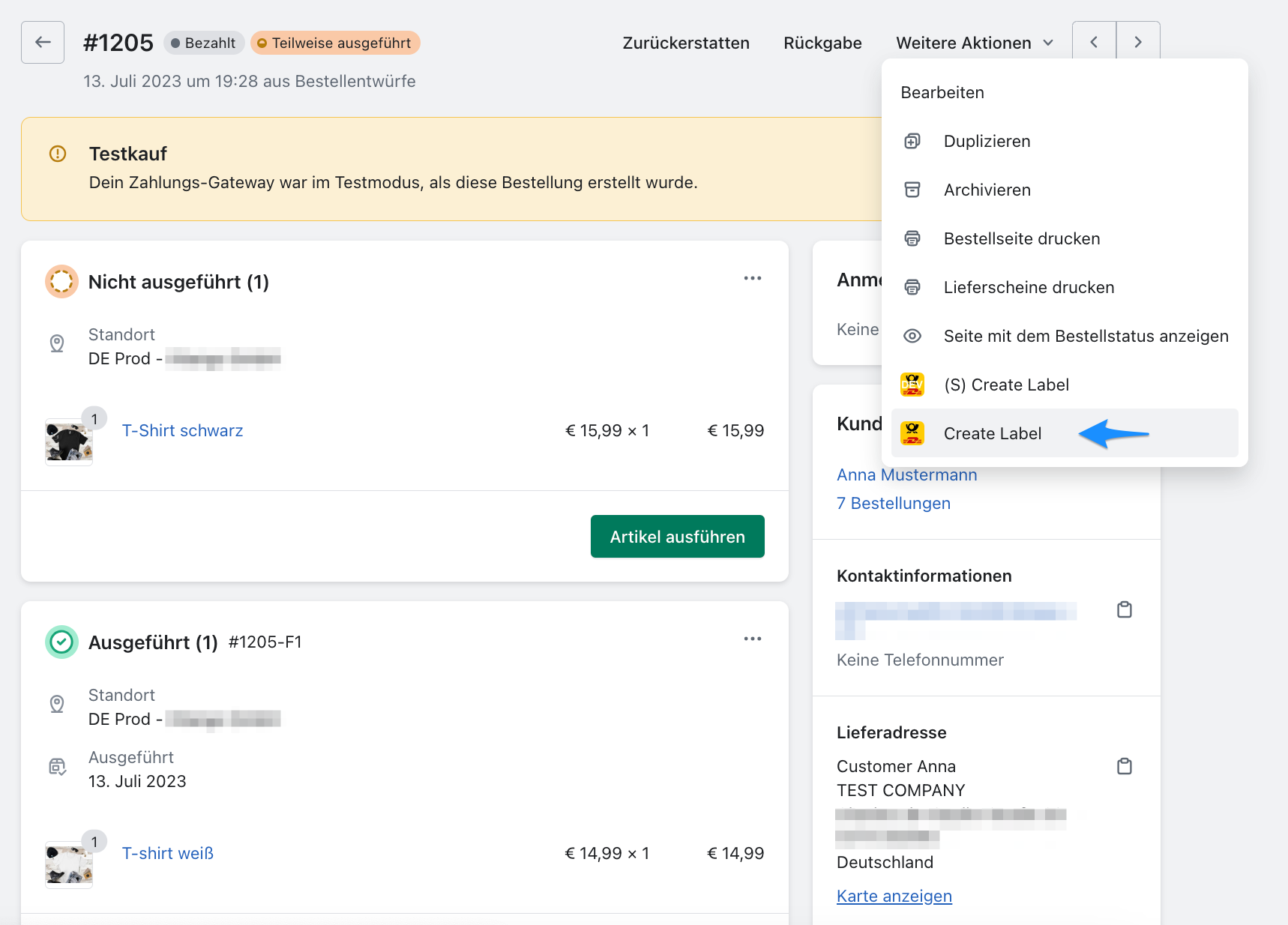
Select More actions, then select Create Label.
Step 4
A label is created for the selected product.
Step 5
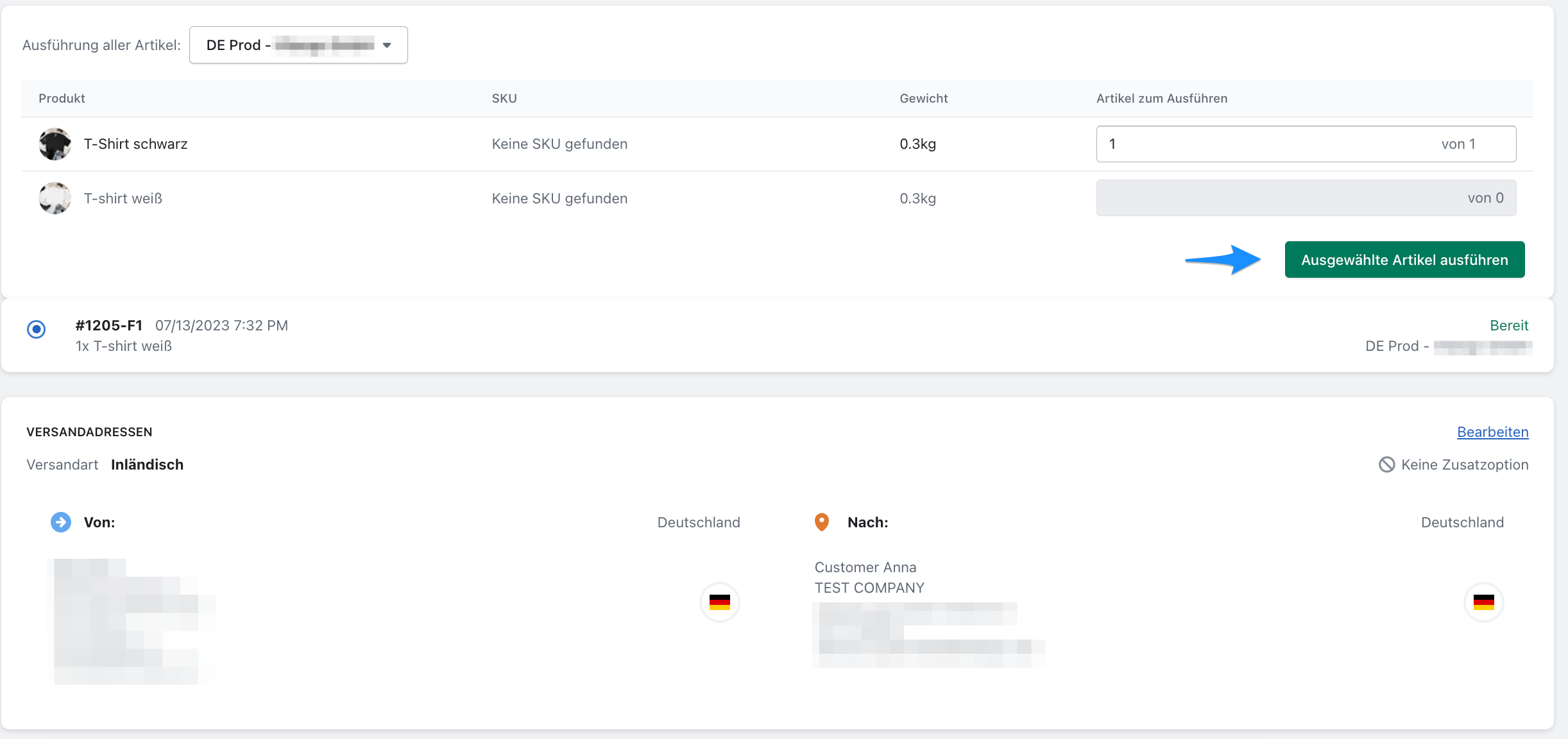
Increase the quantity of the remaining product and select Fulfil selected items to create the second label.
Step 6
The second label has now been created successfully.